Publish with FluxNote

Social Media Auto-Posting and Content Scheduling

Plan, approve, schedule and publish content across connected social accounts from the same workflow used to create it.

Build a Content WeekFree plans can create content but cannot connect social auto-publishing.
Destinations: Connected social accountsSchedule: Days, times and timezoneApproval: Review-first or automatic
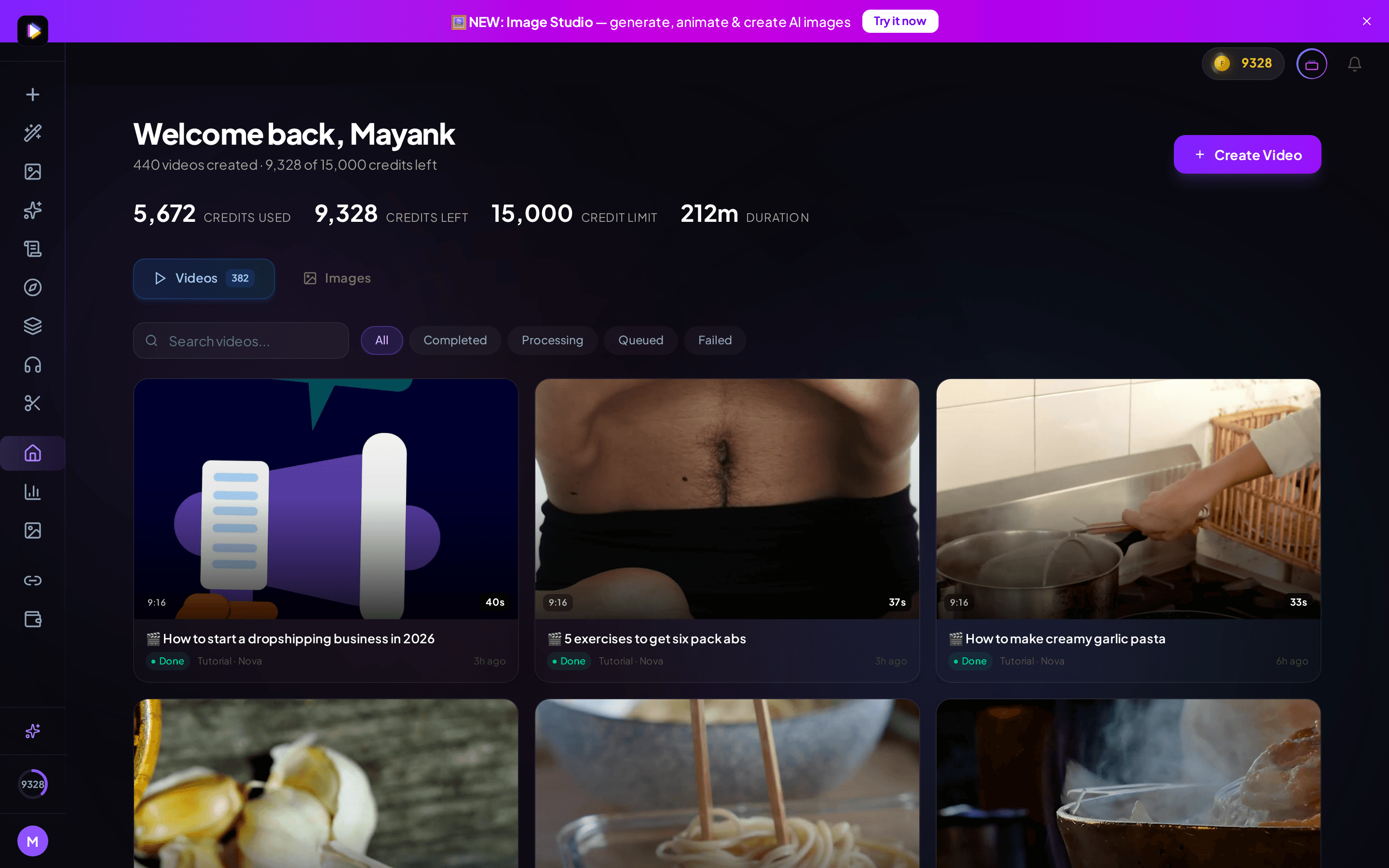
FluxNote product dashboard used to manage AI video projects and publishing workflows
Creation and publishing live in the same product, so finished content can move directly into the operating workflow.

Direct answer

What is Autopilot Publishing?

FluxNote Autopilot helps creators schedule and publish generated content across connected social networks. A weekly plan can move from scripts and finished videos into an approval calendar, then publish at the selected time without exporting and uploading every post manually.

Category guide

Understanding Autopilot Publishing

Product information reviewed August 2026

Social media auto-posting sends approved content to connected accounts at a chosen time. FluxNote connects this publishing step to creation: a finished video can move into a calendar, receive platform details and publish without a manual download-and-upload cycle.

There are two useful levels of automation. A single finished post can be published or scheduled, while a recurring Series can generate episodes on selected days and times, pause for approval when required, and publish to selected destinations. The schedule stores day, time and timezone rather than relying on a vague weekly label.

Auto-posting is not the same as fully unsupervised marketing. Account permissions, captions, platform requirements and content quality still need ownership. FluxNote supports review-first workflows so teams can keep human approval between generation and publishing.

Key insights

The practical facts first

  • Connect supported social accounts once, then publish finished FluxNote videos without downloading and re-uploading them.
  • Schedules can use selected days, times and a timezone for recurring production.
  • Series workflows can pause completed episodes for approval or publish automatically, depending on configuration.
  • Supported destinations include Instagram, TikTok, YouTube, Pinterest and Facebook, with additional connected networks subject to availability.
  • Social auto-publishing is a paid capability; email delivery can provide a non-social handoff for some recurring workflows.

Capabilities

Built for the complete job, not one isolated step

01

One connected workflow

Move from creation to scheduling without rebuilding posts in another tool.

02

Weekly planning

Generate, review and approve a complete publishing week.

03

Multi-network delivery

Prepare content for connected social destinations and formats.

04

Human approval when needed

Review the calendar before posts ship or use an approved autopilot plan.

Product facts

Inputs, controls and output

These are the capabilities exposed by the current FluxNote workflow. Model-specific limits and availability can vary.

Destinations
Connected social accounts
Choose among currently supported publishing networks for the post or series.
Schedule
Days, times and timezone
Define recurring slots rather than relying only on a generic weekly cadence.
Approval
Review-first or automatic
Hold completed episodes for approval or allow an approved series to continue.
Content types
Finished videos and recurring episodes
Schedule individual content or operate an ongoing series workflow.
Management
Calendar and status tracking
See scheduled, posted, held and failed states and reschedule when necessary.
Access
Paid publishing feature
Free plans can create content but cannot connect social auto-publishing.

Workflow

How it works

The workflow is intentionally short: provide the creative direction, let FluxNote assemble the production work, then review before publishing.

  1. 1

    Connect the accounts

    Choose the social destinations managed by the publishing workflow.

  2. 2

    Create the plan

    Generate or add the week's content and select posting times.

  3. 3

    Approve and publish

    Review the calendar and let the scheduled posts ship.

Decision guide

Choose the workflow based on the job

Schedule one finished post

Best when

The creative is final and only delivery time remains.

Choose the destination, add platform details, select the time and keep the post visible in the calendar.

Run a recurring Series

Best when

The same content format should publish on a repeatable cadence.

Define the topic, format, days, times, timezone, destinations and approval behavior before turning the series on.

Keep approval enabled

Best when

Claims, product details, client work or brand-sensitive content require review.

Let generation continue, but hold the completed episode until a person approves the script, scenes and caption.

Workflow comparison

Connected production vs. fragmented tools

Decision pointFluxNote workflowFragmented workflow
Creation handoffGenerated content moves directly into publishingDownload, rename and upload files into a scheduler
Recurring contentSeries combines generation cadence and deliverySeparate content engine, spreadsheet and scheduling tool
ApprovalHold or auto-publish at the workflow levelCoordinate approvals in chat or email
TimingSelected days, times and timezoneRe-enter schedules in each platform
StatusCalendar tracks scheduled and published workCheck every network separately

Honest guidance

Limits and review points

  • Each network has its own permissions, media limits and publishing rules; a connected account can still require reauthorization.
  • Automation does not remove the need to review factual claims, brand safety, captions and destination-specific formatting.
  • Publishing availability depends on the platform connection and paid plan.
  • A failed or rejected platform post should be reviewed and rescheduled rather than assumed to have published.

Use cases

What can you create with Autopilot Publishing?

Weekly content plans
Multi-platform posting
Brand calendars
Faceless channels
Campaign launches
Agency workflows

Query-led answers

Questions people ask before choosing Autopilot Publishing

Concise answers to the informational, commercial and transactional questions in this feature's search-demand cluster.

What is social media auto-posting?

It is the automated delivery of approved media and captions to connected social accounts at a selected time. In FluxNote, the publishing step is connected to the content project and calendar.

Can FluxNote auto-post videos for free?

No. Free plans can generate videos, but connecting accounts and auto-publishing are paid capabilities. Current plan details determine publishing access.

Which social networks can FluxNote publish to?

The product explicitly supports workflows for Instagram, TikTok, YouTube, Pinterest and Facebook, with other connected destinations subject to current availability.

Can I approve a video before it posts?

Yes. Recurring episodes can pause after generation so a person can review the script, scenes and final output before approving publication.

Can I choose different posting days and times?

Yes. Series schedules store selected weekdays, one or more posting times and a timezone. Existing schedules can be changed from the posting schedule view.

What happens if an automatic post fails?

The publishing workflow tracks status rather than treating the request as guaranteed. Review the failure, correct account or media issues, then reschedule or publish again.

Plain answers

Frequently asked questions

Can FluxNote automatically post social content?

FluxNote includes connected publishing and scheduling workflows for supported social destinations.

Can I approve posts before publishing?

Yes. The workflow is designed to support review and approval before scheduled content is published.

Does auto-posting work with generated videos?

Yes. Finished FluxNote content can move from creation into the scheduling workflow.

Continue the workflow

Ready to use Autopilot Publishing?

Start with the workflow, keep every layer editable and move from idea to finished output inside FluxNote.

Build a Content Week