Edit with FluxNote

AI Video Editor for Scenes, Voice, Captions and Music

Edit generated or uploaded video with a scene timeline, voiceover, animated captions, music, transitions and format controls.

Open the Video EditorNo credit card · No watermark on video exports
Project structure: Scene timelineText: Script and captionsVisuals: Generated, stock or uploaded media
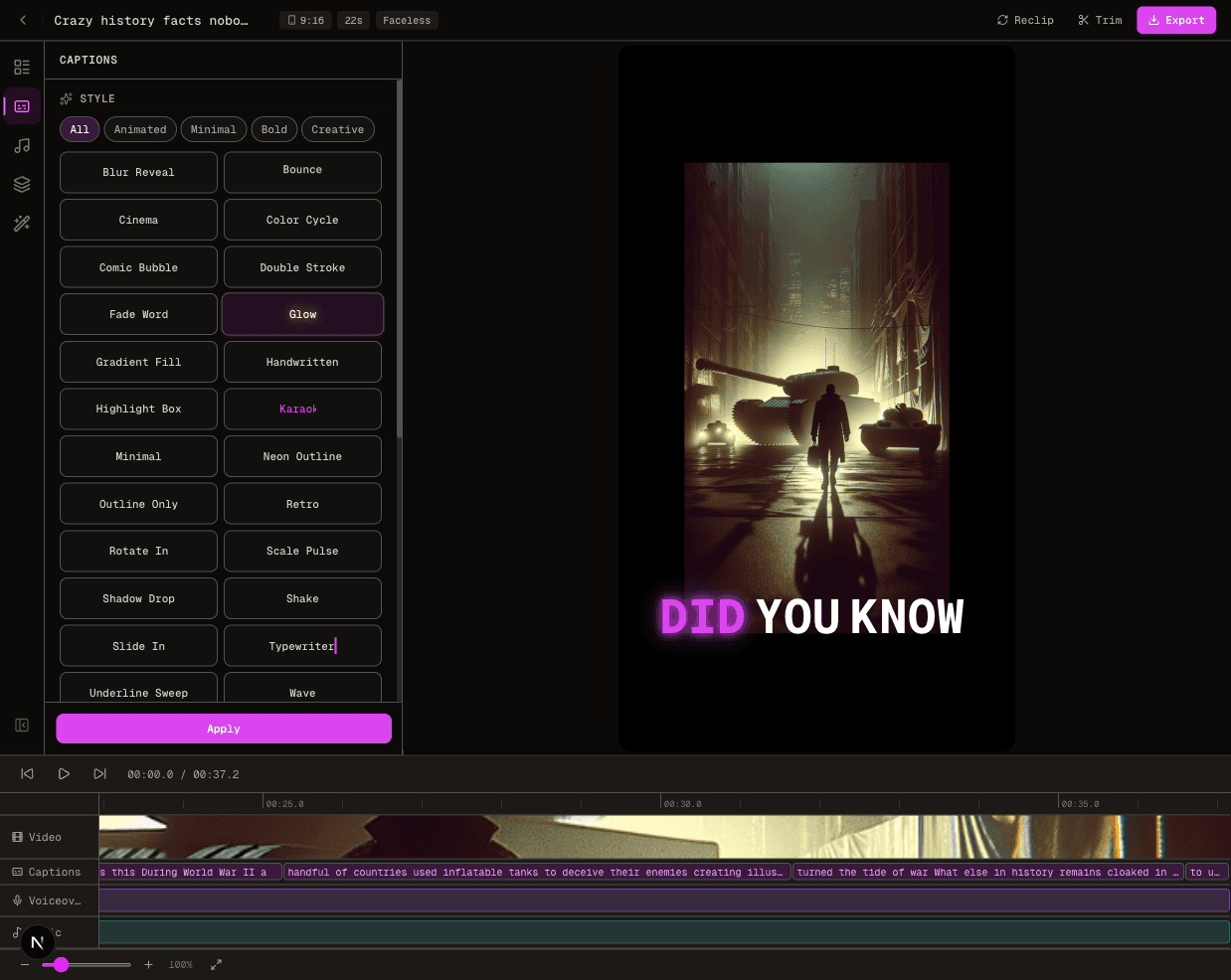
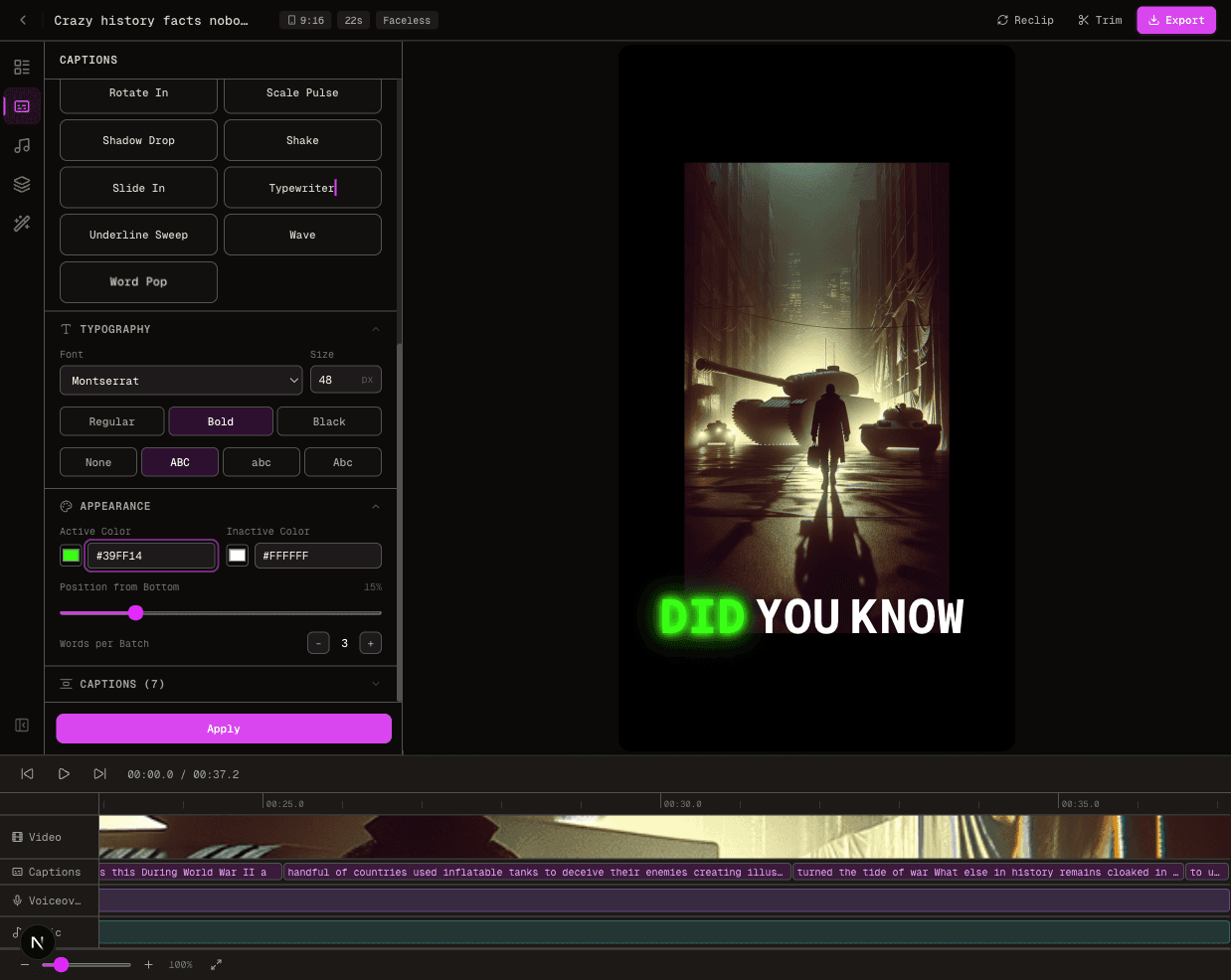
FluxNote AI video editor with caption controls, video preview and scene timeline
The editor exposes the generated cut as real layers and scenes rather than a locked final file.

Direct answer

What is AI Video Editor?

FluxNote's AI video editor keeps generated scenes, voiceover, captions, music and timing in one timeline. You can rewrite lines, replace footage, change caption styles, adjust audio and export for vertical, square or landscape publishing.

Category guide

Understanding AI Video Editor

Product information reviewed August 2026

An AI video editor should reduce repetitive production work without hiding the edit. FluxNote generates a structured project—scenes, narration, captions, music and timing—then exposes those elements in a timeline so the creator can change the result instead of accepting a locked render.

The editor is designed for generated FluxNote projects and short-form production. It is useful when a script line needs rewriting, one scene needs different footage, captions need a new style, or voice and music levels must be balanced before export. That differs from a prompt-only tool that regenerates the entire video after every change.

FluxNote supports common social aspect ratios and keeps the preview connected to scene duration, captions and audio. The full timeline editor is a paid-plan capability; free users can generate content, but should check the current plan for editing access.
Key insights

The practical facts first

  • Generated videos remain structured as editable scenes instead of only becoming a flattened file.
  • Voiceover, music and caption timing are connected to the same project timeline.
  • A single scene can be replaced or refined without rebuilding every other scene.
  • The editor displays the project aspect ratio and supports platform-oriented output such as vertical, square and landscape video.
  • The full timeline is a paid feature; the page should not be described as an unlimited free AI video editor.

Capabilities

Built for the complete job, not one isolated step

01

Scene-by-scene timeline

See the structure of the video and change individual moments.

02

Integrated captions and voice

Edit spoken lines and synchronized text in the same project.

03

Visual replacement

Swap generated, stock or uploaded footage without restarting.

04

Format-ready export

Render for the destination platform and preserve safe layouts.

Product facts

Inputs, controls and output

These are the capabilities exposed by the current FluxNote workflow. Model-specific limits and availability can vary.

Project structure
Scene timeline
Review and change individual scenes while preserving the rest of the project.
Text
Script and captions
Correct spoken copy and synchronized on-screen text before render.
Visuals
Generated, stock or uploaded media
Replace the visual assigned to a scene without restarting the complete video.
Audio
Voiceover and music controls
Balance spoken narration and background music within the project.
Formats
Vertical, square and landscape
Work in the aspect ratio intended for the destination.
Output
Rendered publish-ready video
Preview the structured edit, save changes and render the final cut.

Workflow

How it works

The workflow is intentionally short: provide the creative direction, let FluxNote assemble the production work, then review before publishing.

  1. 1

    Open a project

    Start from an AI generation or an existing FluxNote video.

  2. 2

    Refine each layer

    Edit scenes, script, voice, captions, music and timing.

  3. 3

    Preview and export

    Check the final format and render the publish-ready cut.

Decision guide

Choose the workflow based on the job

Edit the generated project

Best when

The overall video is right and only specific scenes or lines need work.

Preserve the structure, then fix the smallest layer responsible for the problem instead of regenerating everything.

Replace a scene

Best when

The timing and narration work but the visual does not.

Swap the generated, stock or uploaded asset for that scene and recheck the crop in the target aspect ratio.

Regenerate the concept

Best when

The hook, structure or audience angle is wrong across the complete video.

Return to generation or Remix; timeline editing is inefficient when the foundational brief needs to change.

Workflow comparison

Connected production vs. fragmented tools

Decision pointFluxNote workflowFragmented workflow
Starting pointA generated project with scenes and synchronized layersA flattened export imported into a separate editor
Scene changesReplace or refine one sceneRebuild cuts and timing around a new asset
CaptionsWord-synced caption styles inside the projectGenerate, export and re-import subtitle files
AudioVoiceover and music remain connected to timingAlign independent audio tracks manually
Best useFast refinement of AI-generated social videoTraditional editors offer deeper frame-level compositing

Honest guidance

Limits and review points

  • FluxNote is optimized for structured AI and social-video workflows, not advanced cinema compositing or complex motion graphics.
  • Changing narration can affect scene and caption timing, so preview the full sequence after script edits.
  • Vertical footage may need a different crop when the project is converted to square or landscape.
  • Full timeline access depends on the current paid plan rather than being an unlimited free editor.

Product and output gallery

FluxNote editor customization view
Customize generated video layers
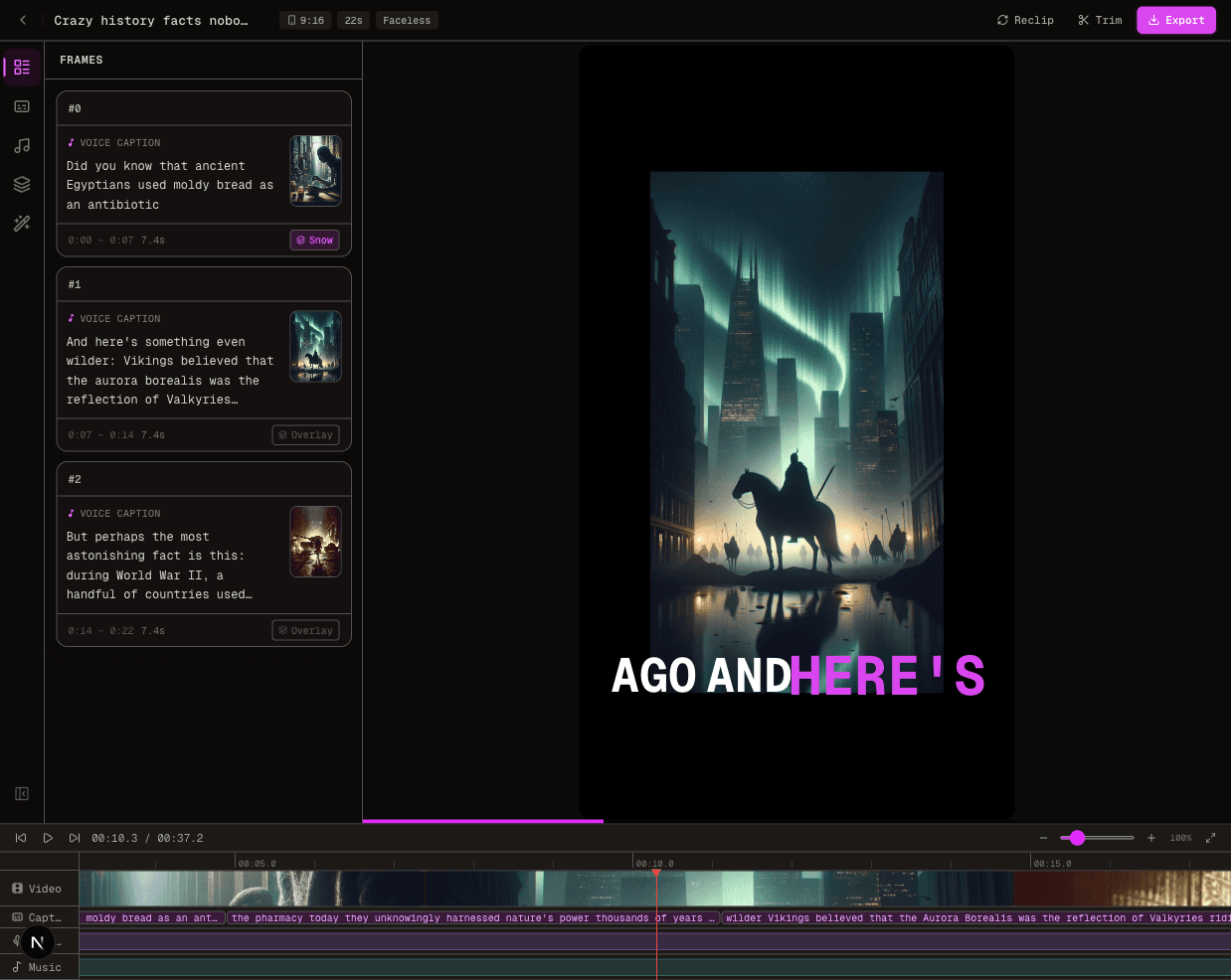
FluxNote scene timeline for AI-generated video
Edit the scene timeline

Use cases

What can you create with AI Video Editor?

Short-form editing
AI video refinement
Caption styling
Scene replacement
Audio balancing
Multi-format export

Query-led answers

Questions people ask before choosing AI Video Editor

Concise answers to the informational, commercial and transactional questions in this feature's search-demand cluster.

What does an AI video editor do?

It automates or assists repetitive editing tasks such as scene assembly, captions, voiceover timing and media selection. A useful AI editor still exposes the result so the creator can correct scenes, wording, timing and audio before export.

Is FluxNote a free AI video editor?

FluxNote offers free generation entry points, but the full timeline editor is a paid-plan capability. Check the current plan page for editing access rather than assuming unlimited free editing.

Can I edit an AI-generated video scene by scene?

Yes. FluxNote projects contain individual scenes. You can refine a specific visual, line, caption treatment or timing decision without discarding the complete generated structure.

Can I replace footage without changing the voiceover?

Yes. Visual media can be replaced at the scene level while the narration and overall structure remain in place. Always preview the crop and timing after the replacement.

Does the editor create animated subtitles?

FluxNote keeps word-synchronized captions in the project and provides multiple visual styles. Caption text and appearance can be reviewed before the video is rendered.

When should I use a traditional editor instead?

Use a traditional professional editor when the project needs detailed compositing, complex keyframes, multicamera work or specialized color and audio finishing. FluxNote is focused on faster structured social and AI-video production.

Plain answers

Frequently asked questions

Can I edit videos generated by FluxNote?

Yes. Generated videos open as editable projects with scenes, voiceover, captions, music and timing controls.

Does the editor support animated captions?

Yes. Caption styles and synchronized text can be changed inside the editor.

Can I replace AI footage?

Yes. Individual scenes can be replaced or regenerated without recreating the entire video.

Continue the workflow

Ready to use AI Video Editor?

Start with the workflow, keep every layer editable and move from idea to finished output inside FluxNote.

Open the Video Editor