Create with FluxNote

Image to Video AI: Animate a Still Image Into a Moving Shot

Turn a generated image or uploaded frame into an AI video clip with model choice, motion direction and format controls.

Animate an ImageNo credit card ยท No watermark on video exports
Start frame: Generated or uploaded imageMotion control: Natural-language promptGeneration controls: Model, duration and resolution
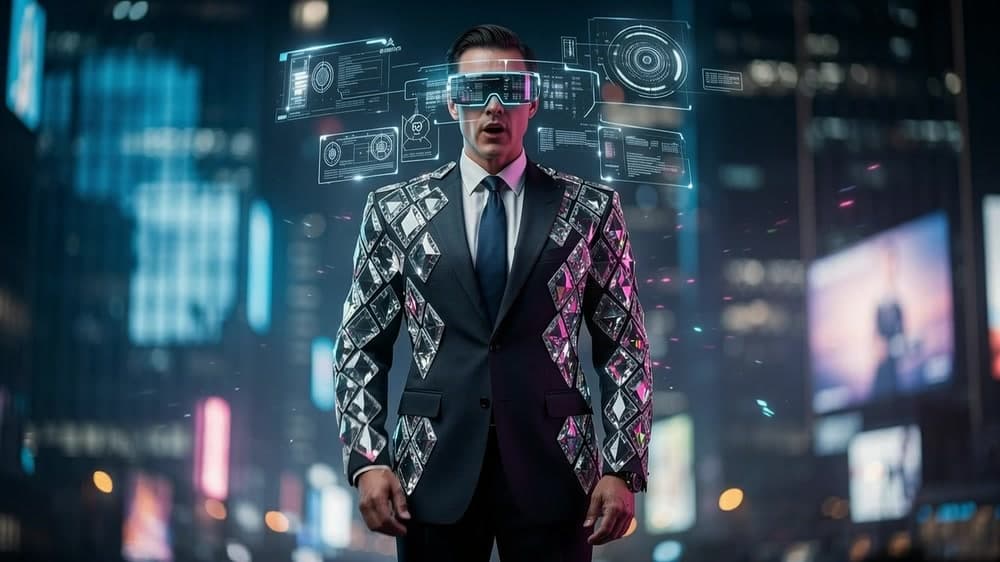
Still frame prepared for an image-to-video generation in FluxNote
Start with a strong frame, direct the motion and generate a clip with the selected video model.

Direct answer

What is Image to Video?

FluxNote image-to-video converts a still image into a moving AI-generated clip. Start from an Image Studio result or upload a reference, describe the camera or subject motion, choose a supported video model and generate a clip for editing or export.

Category guide

Understanding Image to Video

Product information reviewed August 2026

Image-to-video AI generates motion from a starting still image. The source frame anchors the subject, composition, lighting and style; a motion prompt tells the model what should move and how the camera should behave. FluxNote lets creators animate an Image Studio result or an uploaded image and preserves the selected aspect ratio for the resulting clip.

This workflow is most useful when the first frame already looks right and the missing element is motion. Product shots can gain a camera move, illustrations can become short story beats, and a campaign key visual can produce several social variants without regenerating the whole composition from text.

Different video models make different trade-offs in motion, realism, speed, resolution and prompt adherence. FluxNote exposes model, motion prompt, duration and resolution controls, plus prompt enhancement and an optional end image when supported.

Key insights

The practical facts first

  • The starting image controls identity and composition more strongly than a text-only video prompt.
  • A motion prompt should describe movement and camera behavior, not repeat every visual detail already visible in the frame.
  • Available production options include model, duration, resolution, prompt enhancement and an optional end frame where supported.
  • Visible model labels in the product include Seedance 1.5, Runway Gen-4, Hailuo 02 and Kling 2.6, subject to availability.
  • Animate to Video is a paid, credit-based feature rather than an unlimited free generator.

Capabilities

Built for the complete job, not one isolated step

01

Start from any frame

Use a generated image or upload an existing visual reference.

02

Direct the movement

Describe camera motion, subject action and atmosphere.

03

Choose the video model

Match the model to realism, motion, speed or creative style.

04

Continue into editing

Place the clip inside a larger video project or export it directly.

Product facts

Inputs, controls and output

These are the capabilities exposed by the current FluxNote workflow. Model-specific limits and availability can vary.

Start frame
Generated or uploaded image
Use an Image Studio result or provide an existing visual.
Motion control
Natural-language prompt
Describe subject action, camera movement, atmosphere and intensity.
Generation controls
Model, duration and resolution
Options vary according to the selected video model.
Prompt assistance
Optional enhancement
Prompt enhancement can turn short direction into fuller motion guidance.
End state
Optional end image
Supported workflows can guide the clip toward a supplied final frame.
Output
Downloadable video clip
Review the generated motion, then download it or use it in a larger edit.

Workflow

How it works

The workflow is intentionally short: provide the creative direction, let FluxNote assemble the production work, then review before publishing.

  1. 1

    Choose the image

    Select an Image Studio result or upload a still frame.

  2. 2

    Describe the motion

    Set the subject movement, camera direction and mood.

  3. 3

    Generate the clip

    Review, rerun or move the clip into the editor.

Decision guide

Choose the workflow based on the job

Use subtle motion

Best when

The image is polished and identity must remain stable.

Ask for a slow push-in, small environmental movement or restrained expression rather than several simultaneous actions.

Use directed action

Best when

The still is a starting pose for a clear subject movement.

Describe one action, its speed and the camera behavior. Complex sequences are more reliable as separate clips.

Use an end frame

Best when

The shot must land on a known product angle or composition.

Choose a model that supports end-image guidance and keep the start and end frames visually compatible.

Workflow comparison

Connected production vs. fragmented tools

Decision pointFluxNote workflowFragmented workflow
Creative anchorA chosen image fixes the initial compositionText-only video may reinterpret the whole scene
Motion directionPrompt camera and subject movement directlyManual keyframes or provider-specific controls
Model choiceMultiple supported video model familiesSeparate model websites and balances
ContinuationDownload or continue the clip inside the FluxNote workflowExport, convert and re-upload into an editor
Best useShort shots, product motion, story beats and social creativeManual animation is stronger for exact frame-level control

Honest guidance

Limits and review points

  • Small faces, hands, text and product labels may change when the model invents new frames; review brand-critical details.
  • A single short clip should usually contain one clear action rather than a multi-step sequence.
  • Model availability, allowed duration and resolution are not identical across every generation option.
  • FluxNote does not claim unlimited free image-to-video generation; animation uses paid credits.

Use cases

What can you create with Image to Video?

Product motion
Cinematic shots
Social loops
Story scenes
Ad creative
Character animation

Query-led answers

Questions people ask before choosing Image to Video

Concise answers to the informational, commercial and transactional questions in this feature's search-demand cluster.

How does image-to-video AI work?

The model receives a starting image and motion instructions, then generates the intermediate frames that make the subject, camera or environment move. The image anchors the first frame while the prompt directs change over time.

Can I convert an image to video with AI for free?

FluxNote's Animate to Video workflow is a paid, credit-based feature. It does not promise free unlimited generation. You can prepare or generate the source image first, then see the current model cost before rendering.

Can I upload my own photo?

Yes. You can animate an image created in FluxNote or use an uploaded source. A clear, high-quality image with enough room for the intended movement generally produces a better starting point.

Which image-to-video AI model should I use?

Choose according to the shot: realism, motion strength, prompt adherence, speed, supported duration, resolution and end-frame control. FluxNote presents the options available for the current workflow.

Can image-to-video AI keep a product consistent?

The source image provides a strong visual anchor, but newly generated frames can still alter labels, hands or fine details. Use restrained motion and inspect every brand-critical frame before publishing.

What should an image-to-video motion prompt include?

Describe the subject action, camera movement, speed and atmosphere. Avoid re-describing the still image unless a visible element must remain unchanged. One clear motion instruction is usually easier to control than several competing actions.

Plain answers

Frequently asked questions

How does image-to-video AI work?

You provide a starting image and motion direction; the selected video model generates new frames that animate the subject, camera or environment.

Can I use my own image?

Yes. You can upload a reference image or begin with an Image Studio result.

Can I edit the generated clip?

Yes. Generated clips can be used inside the FluxNote video editor.

Continue the workflow

Ready to use Image to Video?

Start with the workflow, keep every layer editable and move from idea to finished output inside FluxNote.

Animate an Image