FLUX Kontext
Image-to-image variations
Take an image, generate variations. Good for exploring style options or generating series.

Cost per image
3 credits
Free renders
~33 on free plan
Watermark
None, even free
Animate to video
1-click, 5-10s
What is FLUX Kontext?
Take an image, generate variations. Good for exploring style options or generating series.
FLUX Kontext is an image-editing AI model: you provide an existing image and a plain-English instruction, and it modifies exactly what you describe while leaving the rest of the image intact. Unlike text-to-image models that generate from scratch, FLUX Kontext understands spatial relationships, preserves colors and lighting that weren't mentioned in the instruction, and applies changes that look like they were always part of the original photo. Common use cases include swapping backgrounds, changing clothing colors, adding or removing objects, adjusting lighting conditions, and adapting seasonal versions of existing brand assets, all without touching Photoshop.
FLUX Kontext accepts JPG, PNG, and WebP source images at up to Up to 1536×1536. Generation time is 8-14 seconds, faster than most text-to-image models because the model is modifying rather than generating from scratch. Edit instructions work best when they're specific about what to change and explicit about what to preserve: "change the background to a white studio backdrop, keep the product and lighting" reliably outperforms "clean up the background". For large structural changes, removing a person, adding a new object, multiple iterations work better than trying to describe the entire transformation in one prompt.
On FluxNote, FLUX Kontext costs 3 credits per image. The free plan includes 100 credits per month, enough for 33 FLUX Kontext renders with no credit card and no watermark. Paid Stripe plans start at $20 month to month, with lower monthly equivalents on quarterly and annual billing, and scale to 15,000 credits without changing how the model or the interface works. FLUX Kontext sits alongside 18 other image models in the same dashboard; switching to a different model for a different job is a single click, no separate subscription required.
Every FLUX Kontext output has a one-click animate button. FluxNote sends the still to one of its AI video models, Sora 2 Pro, Veo 3, Kling 3.0, Runway Gen-4, or Seedance 2.0, and returns a 5-10 second clip. This image-to-video workflow is particularly useful for ad creatives (static images animate well for story and feed placements), social content (a single FLUX Kontext image can become a TikTok, Reel, and YouTube Short), and product showcases (slow camera moves around a product image that isn't technically a 3D model).
For most workflows, FLUX Kontext works best as part of a multi-model pipeline: generate concepts fast with FLUX Schnell or Gemini Flash 2.5 at 1-4 credits per image, switch to FLUX Kontext for the final render, then run the result through FLUX Kontext Edit for last-mile corrections, or Nucleus Image if you need a 2× or 4× upscale for print. All of these models are available under the same FluxNote subscription, there's no additional charge to access other models.
Spec sheet
Hard numbers, what FLUX Kontext accepts and what it produces.
Resolution
Up to 1536×1536
Generation time
8-14 seconds
Aspect ratios
Any, independent of source
Inputs
Source image + text
Real outputs from FLUX Kontext
1 samples generated by FluxNote users. Hover any image to read the prompt.
FLUX Kontext: strengths & limitations
An honest picture of what FLUX Kontext does well, and where it doesn't. Use this to decide whether to pick FLUX Kontext or one of FluxNote's 18 other image models for a given job.
Strengths
- ●Generates style/composition variations from a reference image without losing the core subject.
- ●Strong for building visually consistent series (3, 6, 12 images that look like family).
- ●Great for adapting one source across multiple aspect ratios.
Limitations
- ●Variations stay close to the source, for a wholly new image, use text-to-image.
- ●Less useful when you want surgical edits (use FLUX Kontext Edit for that).
3 ways creators use FLUX Kontext
Real-world workflows we see most often in the FluxNote dashboard.
Multi-channel asset families
Scenario:One hero asset needs to ship as a square Instagram post, a vertical TikTok cover, and a horizontal LinkedIn banner.
Walkthrough:Upload the hero, run Remix in three aspect ratios, end up with a stylistically-consistent family.
Brand illustration series
Scenario:You have one beautiful illustration; you need 5 more in the same vibe.
Walkthrough:Upload the source, vary the prompt slightly each time, end with a 6-piece series ready for a campaign.
Style transfer
Scenario:You love a specific painter's style and want your photo reinterpreted.
Walkthrough:Upload the photo, prompt 'in the style of [artist] but keep the subject', generate.
Prompt examples that work with FLUX Kontext
Copy-paste any of these prompts into the FLUX Kontext model to get a result close to the example.
Aspect-ratio family
[base image] generate 9:16 vertical version, same mood and paletteStyle transfer
[base photo] reimagine in the style of Van Gogh's Starry Night paletteSeries companion
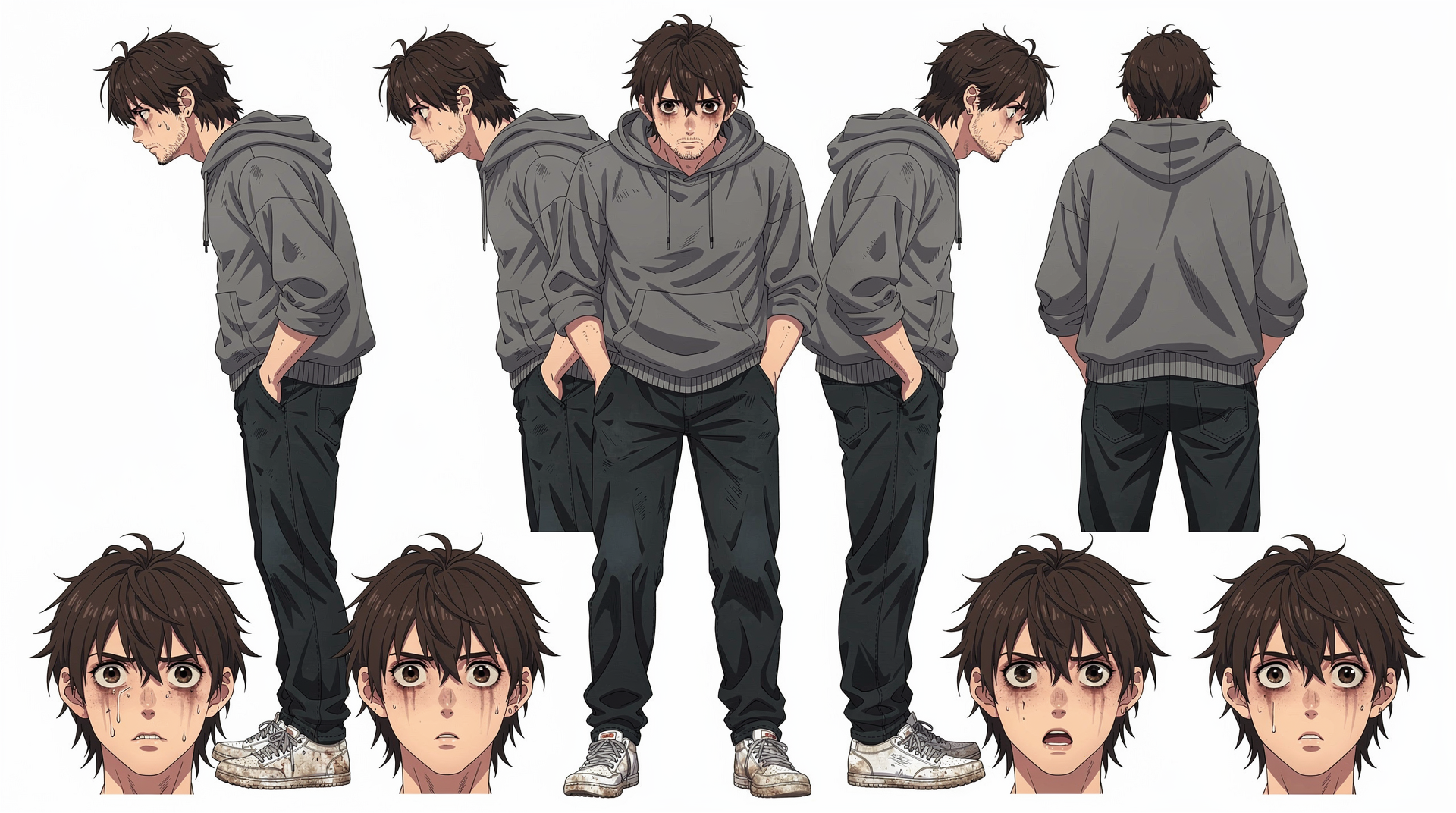
[base image] same character, different pose, same lightingHow to get the best results from FLUX Kontext
Prompt strategies that consistently improve output quality, based on how FLUX Kontext was trained and what it responds to.
Be specific about lighting
Instead of "product photo", try "product on white marble, soft diffused window light from the left, slight shadow on the right, 85mm lens perspective". Lighting direction and quality are the single biggest driver of FLUX Kontext's realism.
Name the camera or lens
"35mm film grain", "85mm portrait lens", "macro lens close-up", "wide-angle environmental shot", FLUX Kontext was trained on a corpus that includes photography metadata. Camera/lens references activate a different distribution of outputs than generic prompts.
Describe what's NOT in the frame
Adding "no text, no watermark, no border, clean background" prevents FLUX Kontext from adding visual clutter that wasn't requested. Negative constraints are especially useful for product photography and editorial portraits.
Use aspect ratio to guide composition
FLUX Kontext adapts composition to the requested aspect ratio. For a 9:16 vertical, it naturally produces portrait-style framing. For 16:9, it composes for landscape. Choosing the right ratio before prompting, rather than cropping after, gives you better compositions and less wasted generation.
Iterate on the seed before changing the prompt
When FLUX Kontext produces a near-miss result, try regenerating with a different seed before rewriting the prompt. 80% of the time, the issue is randomness, not prompt direction. Changing the seed with the same prompt often produces the version you were looking for.
Specify what to preserve explicitly
"Change the jacket to red, keep the face, hair, and background exactly as-is", FLUX Kontext needs to know what not to touch. Edits that don't specify what to preserve sometimes propagate changes further than intended. Explicit preservation constraints produce cleaner, more surgical results.
Use incremental edits for large changes
For transformative changes (swapping a background, adding a new object), break the edit into steps rather than asking for everything in one prompt. Edit the background first, then add the new element, then adjust lighting to match. FLUX Kontext handles incremental edits more reliably than single large transformations.
FLUX Kontext vs other FluxNote models
Quick reference for picking the right model, every alternative below ships in the same FluxNote subscription.
vs FLUX Kontext Edit
FLUX Kontext Edit for surgical edits; FLUX Kontext for whole-image variations.
How to generate with FLUX Kontext
Four steps from prompt to publish-ready output. Total time: under 14 seconds.
Upload your source image
Sign in to FluxNote (free, no card) and upload the image you want to edit. FLUX Kontext works on JPG, PNG, and WebP, no special format needed and no upper file-size limit beyond the typical 25 MB. Your source is private to your account.
Write your prompt
Describe the image in plain English. FLUX Kontext responds best to specific details, subject, setting, lighting, lens, mood. It's tuned for series, variations, style transfer, but it handles general-purpose prompts too. If your prompt is short, FluxNote's built-in prompt assistant can expand it for you in one click.
Pick aspect ratio and style
Choose 1:1, 9:16, 16:9, 4:5, or 3:2 to match your destination, TikTok, Instagram, YouTube thumbnail, blog hero, print. Add an optional style preset (cinematic, anime, photoreal, painterly, etc.) to bias the output. Premium aspect ratios like 21:9 unlock on the Pro plan.
Generate, refine, animate
Hit generate. FLUX Kontext typically renders in 8-14 seconds. Iterate on the prompt or seed to dial it in, then export full-resolution PNG with no watermark. Want it animated? Click the animate button to turn the still into a 5-10 second video clip in the same dashboard, no separate tool required.
Why creators pick FluxNote for FLUX Kontext
FLUX Kontext is one of 19 image models on FluxNote. One subscription unlocks them all.
One subscription covers FLUX Kontext plus 18 other AI image models, FLUX 2 Pro, FLUX PuLID, FLUX Kontext Edit, Seedream 3, Gemini Flash 2.5, FLUX Schnell, and more. No per-model paywalls and no separate logins for each provider.
100 free credits per month, no credit card required to start. FLUX Kontext costs 3 credits per image, that's around 33 free renders on the free plan alone.
Zero watermark on every plan including free. Your FLUX Kontext images export as clean full-resolution PNG, ready for paid social, print, or anywhere else.
Animate any FLUX Kontext output into a 5-10 second video clip with one click. Useful for ads, story posts, reel openers, and YouTube thumbnails, the animation cost is metered separately and starts at 6 credits.
Built-in prompt assistant, batch generation, image-to-image variations, and a reusable prompt library. You don't need to memorize prompt syntax, paste a rough idea and FluxNote refines it.
Reusable seed and style controls, lock the visual direction once, regenerate variants without losing it. FLUX Kontext respects seed control like the underlying API does.
Private by default. Outputs are visible only to your account unless you publish them to the showcase. We never sell or share your prompts and reference images.
FLUX Kontext FAQ
The 10 questions creators ask most often before switching to FLUX Kontext.
Is FLUX Kontext free on FluxNote?+
Yes, every FluxNote plan including the free tier (100 credits/month) can generate with FLUX Kontext. Each generation costs 3 credits, so the free tier covers around 33 renders per month with no credit card required.
What is FLUX Kontext best for?+
Series, Variations, Style transfer. Take an image, generate variations. Good for exploring style options or generating series. If your project is specifically commercial-print or hero-creative work, you may want to pair it with one of FluxNote's premium models (FLUX 2 Max, Imagen 4 Fast, Seedream 4) for the final render.
Does FLUX Kontext add a watermark?+
No. FluxNote does not watermark any output, on any plan, including free. Every FLUX Kontext image exports as a clean full-resolution PNG that you can use commercially without attribution.
Can I use FLUX Kontext commercially?+
Yes. FluxNote grants commercial usage rights on outputs from every model including FLUX Kontext. You can use the images in ads, products, books, and merchandise. As with any AI generation, double-check that the prompt and output don't reproduce protected likenesses or trademarks.
What input does FLUX Kontext need?+
Source image + text. Edit models need an existing image to operate on, plus a text instruction describing the change.
Can I turn a FLUX Kontext image into a video?+
Yes, every FLUX Kontext output has a one-click animate button. FluxNote will generate a 5-10 second video clip from your still using one of the AI video models (Runway Gen-4, Kling, Sora 2 Pro, Veo 3, Seedance). Pick the model from the animate dropdown; cost starts at 6 credits per clip.
What resolutions can FLUX Kontext export?+
Up to 1536×1536. Free plan exports the same resolution as paid plans, there is no quality gating. If you need print-grade resolution, run the result through Nucleus afterwards to upscale 2× or 4× without losing detail.
Is my data private?+
Yes. Reference photos and prompts are visible only to your account. We do not sell prompts, do not train on your inputs, and you can delete generated images at any time from your library. Identity-locked models (FLUX PuLID) embed reference photos privately and you can purge embeddings on request.
FLUX Kontext vs other AI image models, when should I pick it?+
Use FLUX Kontext when series, variations, style transfer matter most. Compared to FLUX Kontext Edit, flux kontext edit for surgical edits; flux kontext for whole-image variations. For an everyday default, most creators pick FLUX Schnell or Gemini Flash 2.5; for hero work, FLUX 2 Max or Seedream 4; for identity, FLUX PuLID; for targeted edits, FLUX Kontext Edit.
Do I need to install anything?+
No. FluxNote runs in any modern browser, Chrome, Firefox, Safari, Edge, on desktop and mobile. There is no install, no GPU requirement, and no waiting in line. Your library, prompts, and outputs sync across devices automatically.
More Edit & Refine models
Same category, different strengths.

Other models on FluxNote

Create once. Publish everywhere.
Create videos, images, ads, voiceovers, music and social content in one editable workspace. Start with 100 bonus credits.
No credit card · No watermark · Start in seconds
From inspiration to your own creation
Put your next idea into action.
Videos, images and ads. One creative studio. Pick what you want to make—or try the walkthrough before you sign up.
Your ideas. Your videos. No camera required.
Turn your next story into a faceless video. Explore the workflow, then create your own in FluxNote.
- 01 Choose a style
- 02 Add your idea
- 03 Make it your own
Start with an account. Create at your own pace.
Loading walkthrough… Full-screen link below if needed.
Tool access and generation allowances depend on your plan.